Which Photos Work for the Fancy Cafe Template?
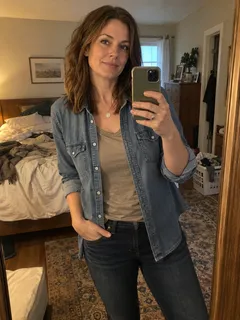
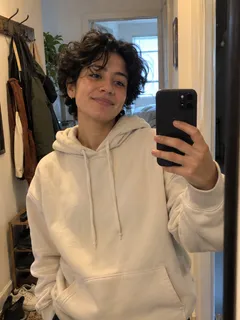
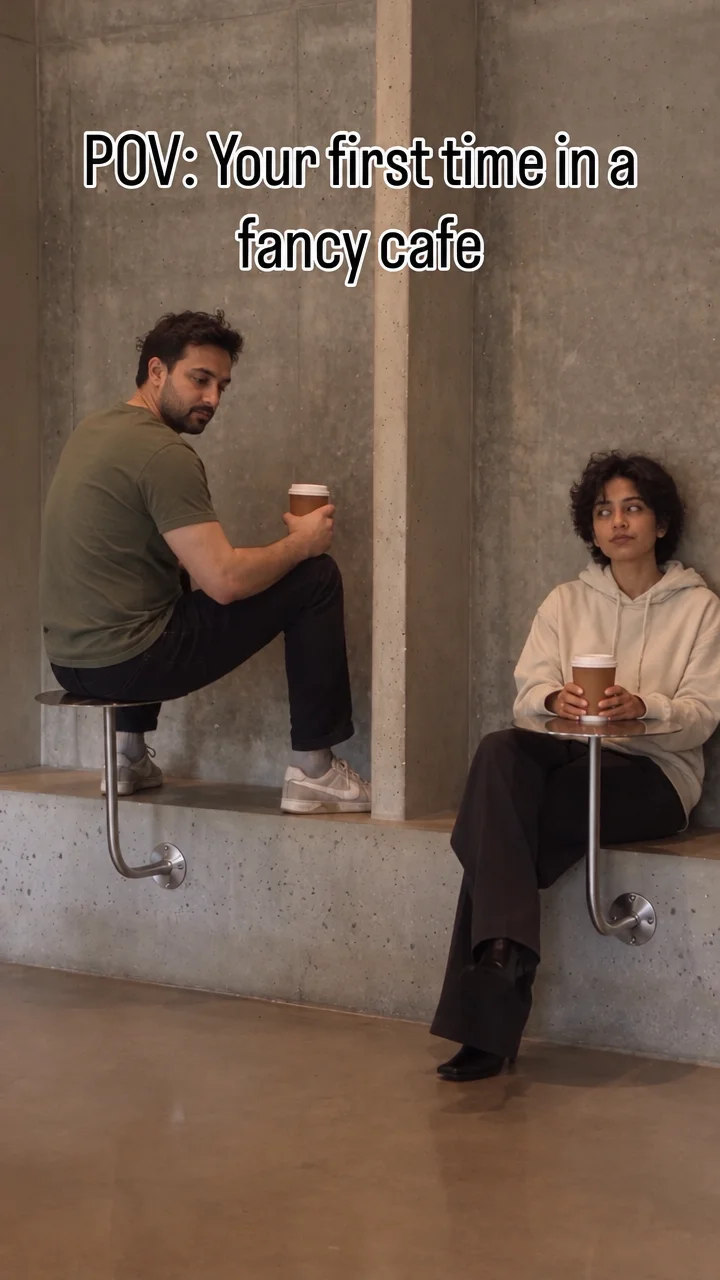
Choose a clear photo for “POV: Your first time in a fancy cafe.” Change Left person, Right person or both, with one face and the upper body visible in each photo.
One person per photo
Choose a photo where the intended person is easy to identify. For a group image, crop a copy around the person you want to use. Keep their head and shoulders inside the crop.
Use a clear view of the face
Choose a sharp photo in even light, with both image dimensions at least 450px. Eyes, nose and mouth should be visible. A hand over the face, deep shadow or motion blur makes the person harder to identify.
Include the upper body
A photo with the shoulders and upper body gives more information about the person and clothes than a tight face crop. Keep the face large enough to see clearly.
Match each photo to a role
Add one image to Left person, Right person or both. The left person makes the seating mistake; the right person arrives with coffee. Each photo changes only its chosen role; the other person stays as shown when you leave that role unchanged.
Get permission
Use your own photo or ask the other person to agree to the scene and how you plan to share it. You can also choose a family member or a pet, such as a cat or dog. Public figures aren’t supported.
Create your cafe version
Upload a photo for Left person, Right person or both; unchanged roles stay in the scene. Use clear photos of yourself, friends, family or pets, such as cats and dogs. The full 21-second video includes the cafe reveal, original clip audio and a watermark-free MP4.